
Figma MCPを使って具体的にどういった値が返却されているか確認しましょう。具体的に値が確認できることで、AIへの指示の出し方や、対応できる範囲が明確になるかと思います。Framelink Figma MCP Serverと公式のFigma Dev Mode MCPの違いも見ていきましょう。
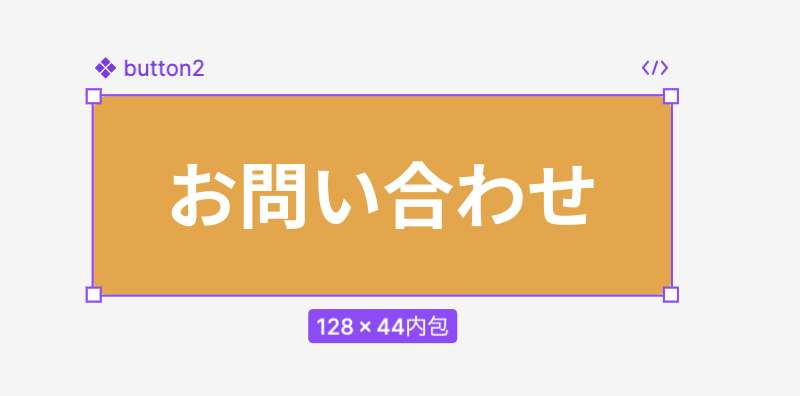
依頼する対象のフレームは以下です。
Framelink Figma MCP Server

以下のツールがあります。
- get_figma_data
- download_figma_images
get_figma_data
- metadata:Figmaファイル全体の情報
- name:Figmaファイル名
- nodes:
- name:選択されたノードの名前
- type
- fills:fill_7BE8ZZのようにglobalVarsを参照する形になる
- borderRadius:角丸
- children:選択したノードの子要素
- textStyle:style_ETZZ5TのようにのようにglobalVarsを参照する形になる
- globalVars:色、タイポグラフィ、レイアウトは、ここを参照する形の作りになっていそう
metadata:
  name: xxxxx
  lastModified: '2025-06-05T08:26:27Z'
  thumbnailUrl: >-
    https://s3-alpha.figma.com/thumbnails/xxxxx
  components:
    '195:389':
      id: '195:389'
      key: 2d799f3a17aa9155eabd9c2e2905df92c14d3b9a
      name: button2
nodes:
  - id: '195:389'
    name: button2
    type: COMPONENT
    fills: fill_7BE8ZZ
    layout: layout_DHGMDF
    borderRadius: 3px
    children:
      - id: '195:388'
        name: お問い合わせ
        type: TEXT
        textStyle: style_ETZZ5T
        fills: fill_R0N3V5
        layout: layout_32VLRA
        text: お問い合わせ
globalVars:
  styles:
    fill_7BE8ZZ:
      - '#EFA336'
    layout_DHGMDF:
      mode: row
      justifyContent: center
      alignItems: center
      padding: 8px 16px
      sizing:
        horizontal: fixed
        vertical: hug
      dimensions:
        width: 128
    style_ETZZ5T:
      fontFamily: Noto Sans JP
      fontWeight: 700
      fontSize: 16
      lineHeight: 1.75em
      textAlignHorizontal: LEFT
      textAlignVertical: TOP
    fill_R0N3V5:
      - '#FFFFFF'
    layout_32VLRA:
      mode: none
      sizing:
        horizontal: hug
        vertical: hug
download_figma_images
nodesに以下のようにJSON形式で対象のノードと保存する際のファイル名を指定します。なおエクスポートというよりは、元画像のダウンロードの動きになります。
キーとしては、imageRefがないとダウンロードが失敗します。なお、画像自体のnodeIdやimageRefをFigmaファイル上から取得する方法は分かりません…。AIに「このフレーム内にある画像をダウンロードしてください」とお願いする形でダウンロードできます。
[
  {
    "nodeId": "xxx-xxx",
    "fileName": "image.png",
    "imageRef": "xxxxx"
  }
]
localPathに保存する先のローカルのパスを記載します。
/Users/xxxxx/Pictures以下のようにダウンロードが成功します。
"Success, 1 images downloaded: /Users/xxxxxx/Pictures/image.png"Figma Dev Mode MCP
以下のツールがあります。
- get_code
- get_variable_defs
- get_code_connect_map
- get_image
get_code
- clientLanguages・・・使用している言語(例:html,css,javascript)をカンマ区切りで指定。判断がつかない場合は
unknownと指定。 - clientFrameworks・・・react、vueなど。分からない場合は、unknownを指定。
- clientName・・・cursor、claude code、claude desktop、chatgpt desktopなど指定が可能
- clientModel・・・AIのモデル。gpt-4、gpt-4o、claude-3.7-sonnetなど
- nodeId・・・対象のノードIDを指定
nodeIdだけ指定した場合は以下のような返却。モージュールとして、Tailwindの装飾作成されています。client〜〜を指定しても返却内容の違いは見られませんでした。
export default function Button2() {
  return (
    <div
      className="bg-[#efa336] relative rounded-[3px] size-full"
      data-name="button2"
    >
      <div className="flex flex-col items-center justify-center relative size-full">
        <div className="box-border content-stretch flex flex-col items-center justify-center overflow-clip px-4 py-2 relative size-full">
          <div className="font-['Noto_Sans_JP:Bold',_sans-serif] font-bold leading-[0] relative shrink-0 text-[#ffffff] text-[16px] text-left text-nowrap">
            <p className="block leading-[1.75] whitespace-pre">お問い合わせ</p>
          </div>
        </div>
      </div>
    </div>
  );
}
Figma上で設定している変数の値を返してくれています。
These variables are contained in the design: Text/Text White: #FFFFFF, text-base/bold: Font(family: "Noto Sans JP", style: Bold, size: 16, weight: 700, lineHeight: 1.75), Bland/Main: #EFA336.get_image
get_codeと同様の指定が可能です。ノードIDを指定すると、結果としてキャプチャ?が返ってきていました。get_codeの説明を見ると以下のように画像を取得してください、とあるので、コードの精度を高めるためにキャプチャを取得するのだと思います。
IMPORTANT: After you call this tool, you should call get_image to get an image of the node for context.
(日本語訳)
重要:このツールを呼び出したら、get_imageを呼び出してノードの画像を取得し、コンテキストを確認すること。

ローカルにダウンロードする機能ではなさそうです。
get_variable_defs
get_codeと同様の指定が可能です。ノードIDを指定すると、結果として変数名と値が返ってきました。スタイルの定義とバリアブルの定義が取得できそうです。
{
  "Text/Text White": "#FFFFFF",
  "text-base/bold": "Font(family: \"Noto Sans JP\", style: Bold, size: 16, weight: 700, lineHeight: 1.75)",
  "Bland/Main": "#EFA336"
}
get_code_connect_map
Figma Code Connectに関する機能と思われますが、Code Connectを理解できていないので、保留です。
ちなみに、Figmaのビジネスプランとエンタープライズプランでのみ利用可能なようです。
Code Connect is only available on the Organization and Enterprise plansまとめ
- 変数の参照はどちらも可能
- HTMLの構造も含めて返してくれるのは公式のFigma Dev Mode MCP(多分Figma Sitesの構造と同じ)
- 画像をローカルに保存できるのはFramelink Figma MCP Server